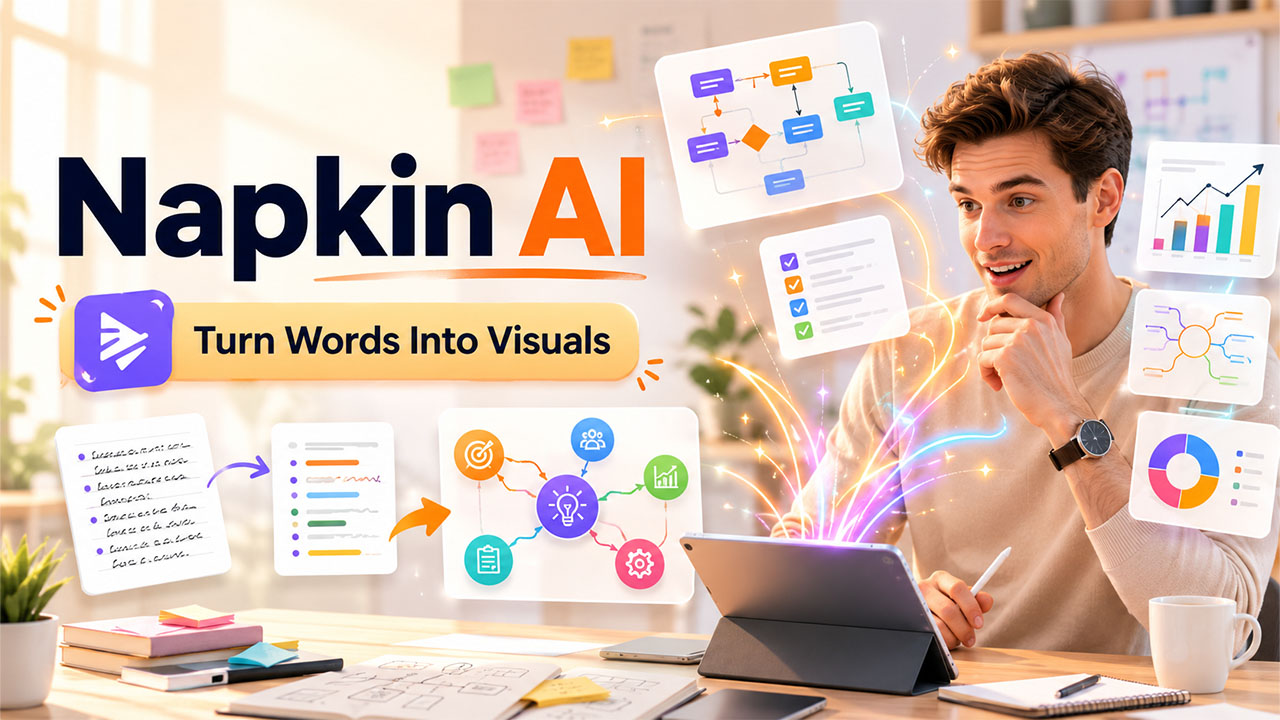
If you’ve ever sat through a meeting trying to sketch out an idea on a whiteboard, only to end up with something that looks more confusing than the words you started with, you’ll understand exactly why Napkin AI has caught on so fast. It takes the messy first version of an idea, plain text, and turns it into a clean diagram or visual in seconds, no design skills required.
Napkin AI was created by the same creators of Osmo, an AI gaming company. Since launch, it already has over 5 million registered users thanks to one main thing: most people can explain their idea in words much more easily than draw it. To use a design tool to come up with a picture, you should not even open it; Napkin AI will create the visual based on your content.
Here, we are going to discuss what Napkin AI does, what its features are, for whom it is made, and what are the disadvantages of it.
What is Napkin AI?
Napkin AI is a browser-based tool that turns written text into visuals, think diagrams, flowcharts, mind maps, and infographics, without needing any design background. You paste or type your text, hit generate, and it analyses the content to suggest visual formats that actually fit what you’re trying to communicate.
The key difference between Napkin AI and other design tools is that it changes the sequence of actions. Usually, design applications offer users a blank canvas and require them to design something themselves. But Napkin AI takes your content first and converts it back to visual form. This way, you don’t have to think about what the final product should be like.
Napkin AI is intended for business storytelling and not general graphic design. In other words, it isn’t intended to create beautiful images out of nowhere but rather take your existing text ideas, processes, comparisons, and steps and convert it into understandable visuals.
Features of Napkin AI
There’s a fair amount packed into Napkin AI, but a few features are what actually make it stand out from other visual tools on the market:
- Text-to-visual generation: Type out your text, and it generates graphics, charts, or infographics that follow the pattern of the text that you have input.
- Various preset styles: Change the design from line-based to filled, flat, layered styles, while leaving the content and layout untouched.
- Brand Studio: Add your branding details like colours and fonts only once, or auto-extract the colour from an image or a logo instead of using hex codes.
- Real-time Collaboration: Share the link with your team, and they will be able to comment, edit and download the visual in real time.
- Multiple output formats: Save the file as either PNG, SVG, PDF and unlock PowerPoint support on paid subscription plans.
- File Imports: Import your existing PDF, doc, or image files and start working with the content that you already have.
One thing worth knowing upfront: Napkin AI doesn’t currently offer an API or a native mobile app, so it’s built for desktop, browser-based use rather than on-the-go creation.
Benefits of using Napkin AI
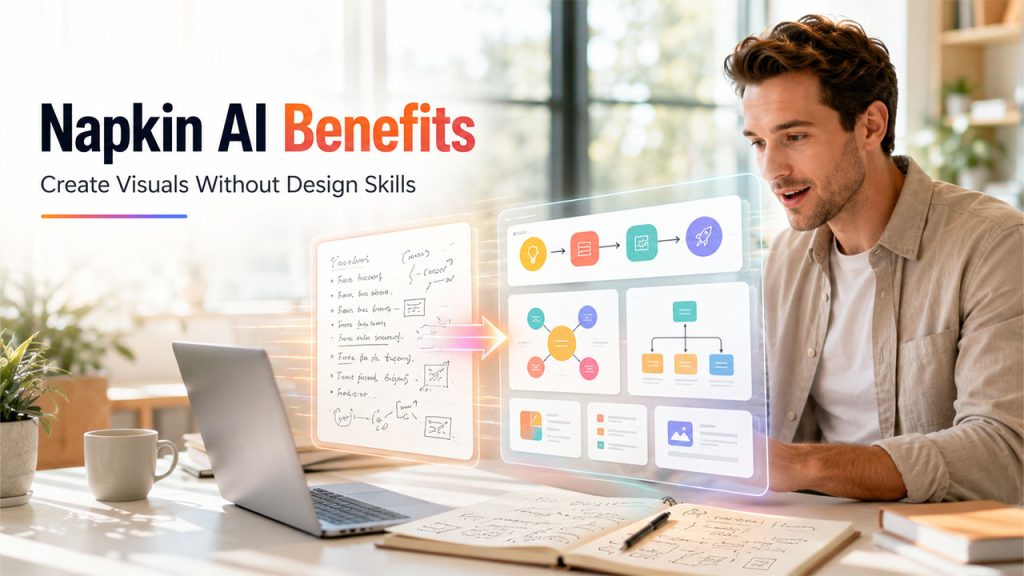
Once you get past the initial “wait, that’s actually what I meant” moment, the real value of Napkin AI becomes less about the visuals themselves and more about how much time it saves:
Faster than starting from scratch: No blank canvas, no starting at a design tool trying to figure out where to begin.
No design skills needed: The AI handles layout and structure, so you don’t need to know anything about visual hierarchy or spacing.
Consistent, professional output: Visuals come out clean and polished every time, rather than depending on how good you are at design that day.
Genuinely useful free plan: Unlike a lot of AI tools that gate everything behind a paywall, the free tier is usable enough to actually test the workflow before committing.
Great for repetitive visual tasks: If you’re constantly turning notes into diagrams for decks or docs, it removes a step you’d otherwise redo manually every time.
Once you’re comfortable with the basics, the real time savings show up when you stop treating it as a one-off tool and start folding it into how you already work, whether that’s dropping visuals into a doc as you write or generating a quick diagram mid-meeting instead of waiting until later.
How to Use Napkin AI
Using Napkin AI is straightforward, even if you have no prior design experience. Start by writing, importing, or pasting your text into the platform. Napkin AI then analyzes the content and suggests visual formats that match the information, such as diagrams, flowcharts, mind maps, charts, and infographics.
Once the visuals are generated, you can choose the design that best fits your idea and customize elements such as colors, layouts, icons, and text. After finishing your design, Napkin AI allows you to export or share the visual for use in presentations, documents, blogs, and social media content.
For users who want to enhance their visual content even further, tools such as Dreamina AI can be useful for creating additional AI-generated visuals and creative assets.
Use Cases: Who’s Actually Using Napkin AI
Napkin AI tends to show up whenever someone needs to turn an idea into something visual, fast, without hiring a designer or opening a full editing suite:
Consultants and marketers: Turning client reports or campaign summaries into visuals that are easier to present than a wall of text.
Educators and students: Building diagrams or concept maps to explain topics more clearly than plain notes ever could.
Content creators and bloggers: Adding quick, clean visuals to posts without needing separate design software. Pairing it with a solid AI Writing Assistant covers both the writing and visual sides of putting a piece of content together.
Business teams: Turning process docs or internal explainers into diagrams that are actually skimmable in a meeting.
Presentation builders: Generating individual charts or diagrams to drop into an existing deck, rather than building a whole presentation from scratch.
It’s worth noting that Napkin AI isn’t trying to be a full presentation builder; it’s more of a visual asset generator you plug into decks, docs, or posts you’re already creating elsewhere.
As AI tools become more integrated into everyday work, visual platforms like Napkin AI can become part of a broader Future of AI-Powered Workplaces, where AI helps teams create, organize, and communicate ideas more efficiently.
Challenges and Limitations of Napkin AI
Napkin AI is genuinely useful, but it’s worth knowing where it falls short before you build a whole workflow around it.
Firstly, it provides neither an API nor any integrations apart from a few tools such as Google Docs and Notion, which makes it impossible to integrate the solution into a larger automated pipeline. Secondly, there is no mobile app, which means you will have to work with it either on your computer or via the web interface, while being able to view content only on mobile devices.
The AI works perfectly fine in English but produces less accurate results when used in other languages, which is why you might want to test it out first for non-English content. In some cases, complex and highly customized designs might require manual editing afterwards, since Napkin AI is perfect for fast and high-quality diagram generation as well as easy-to-make charts, but cannot perform all design jobs that are supposed to be done by a designer.
And it you’re hoping to use it for full presentation decks, its worth setting expectation decks, it’s worth setting expectations early. It’s built to generate individual visuals you drop into an existing deck, not a complete slide-by-slide presentation builder, so anything client-facing usually needs some manual rework afterward.
None of this makes Napkin AI a bad choice; it just means going in with a clear sense of what it’s actually built for instead of expecting it to replace a full design tool.
Conclusion
At the end, Napkin AI isn’t trying to replace designers or full presentation builders; it’s solving a much narrower, more common problem: turning an idea you’ve already written down into something people can actually glance at and understand. For anyone who explains things in words far more easily than they draw them, that’s a genuinely useful shortcut.
It won’t cover every use case. If you need deep customization, an API, or full slide decks ready to hand to a client, you’ll likely still need to lean on other tools alongside it. But for quick diagrams, process visuals, and content that needs a visual boost without a design detour, it does exactly what it promises.
If you’re curious how AI is handling visual creation elsewhere, tools that let you generate AI Storyboards show a similar shift happening in pre-production and creative workflows, not just business diagrams.
Whether you start with the free plan or jump straight into Plus, the best way to know if it fits your workflow is to paste in something you’re already working on and see what it turns into.
Frequently Asked Questions
What is Napkin AI used for?
It’s used to turn written text into visuals like diagrams, flowcharts, and infographics, mainly for presentations, reports, blog content, and internal business documentation. Napkin AI helps bloggers simplify complex topics with clear, engaging visuals that improve content readability and user engagement.
Is Napkin AI free to use?
Yes. Napkin AI offers a genuinely usable free plan with weekly AI credits, though paid plans unlock features like PowerPoint export and higher usage limits.
Does Napkin AI have a mobile app?
No. Napkin AI is browser-based and built for desktop use. You can view content on mobile, but creation isn’t supported there yet.
Can I use Napkin AI for full presentations?
Not quite. It’s designed to generate individual visuals you drop into an existing deck, rather than build a complete slide-by-slide presentation from scratch.
Does Napkin AI support languages other than English?
It does, but accuracy drops noticeably outside English, so it’s worth testing with your specific language before relying on it for non-English content.