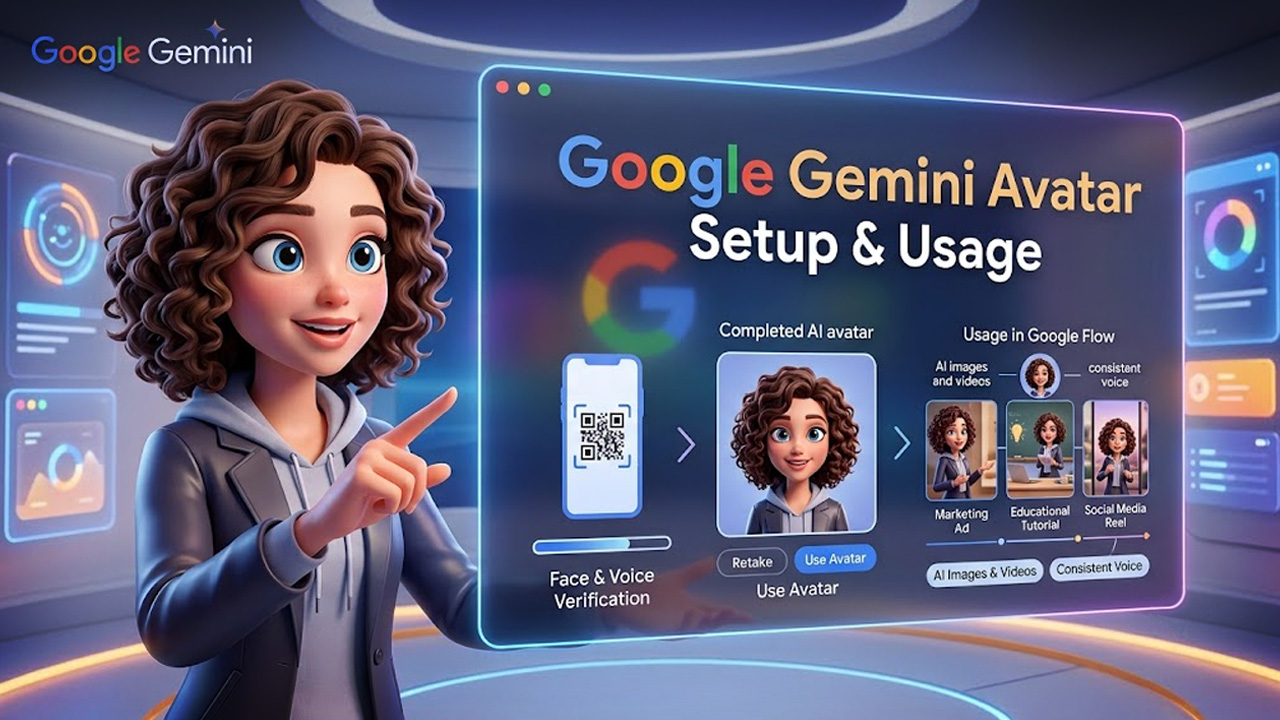
Keeping a character looking and surrounded the same across different AI-generated videos has always been a bit of a hassle. Google is now solving this with Google Gemini Avatar Beta, a feature that lets you build a personalised avatar using your own face and voice and then carry that same avatar straight into Google Flow for consistent results every time. Here is a complete walkthrough of how the whole process works, from setup to using your avatar in real projects.
What is Google Gemini Avatar Beta?
Google Gemini Avatar Beta allows you to create an avatar from your face and voice for use throughout your generated AI content. With its creation, you are able to create visuals that always involve the same person and voice instead of a new individual in each instance of generation. Some important points that should be considered before use:
- The feature is currently labelled Beta, so Google is still actively developing it.
- More features and improvements are expected in future updates.
- The same avatar can be created and used inside both Google Gemini and Google Flow.
How Google Gemini Avatar Beta Can Be Used for Different Types of Content
A personalised avatar can be useful for more than simply appearing in AI-generated videos. Once you have a consistent digital identity, you can use it across different types of content without having to introduce a completely different character each time.
For example, creators can use an avatar for educational explainers, product demonstrations, social media videos, virtual presentations, and recurring storytelling projects. Businesses may also find the feature useful for creating a recognisable presenter for internal training or marketing content.
The biggest advantage is continuity. When the same face and voice are used repeatedly, viewers can more easily recognise the character or presenter across different videos. This can be especially useful for creators who are building a long-term content series rather than producing one-off AI videos.
For users who want to explore other creative AI tools, Leonardo AI offers another approach to creating and developing AI-generated visual content.
Requirement of Gemini Pro Subscription
It always pays off to be aware of places where a subscription is necessary and where it is not, as this aspect confuses many users.
- Creating an avatar directly through Google Gemini requires an active Gemini Pro subscription.
- Creating an avatar through Google Flow does not require a Gemini Pro subscription.
- Google Flow instead offers a free trial with around 50 credits to get you started.
Although a free trial seems like a fairly good option to try things out, credits are likely to run out pretty quickly when you generate your images and videos.
Step-by-Step: Setting Up and Using Your Google Gemini Avatar
Now that you know what the features do and what it needs, here’s the actual walkthrough, broken down step by step so you can follow along without missing anything.
Step1: Create Avatar in Gemini
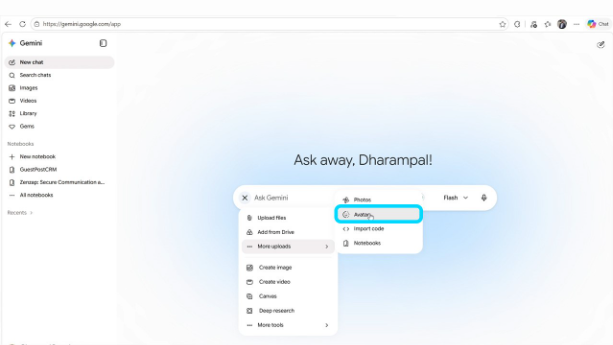
Setting up your avatar only takes a few clicks once you know where to look.
- Open any browser on your computer or phone and search for Google Gemini.
- Sign in with your Google account or create one first if you are new.
- Click the Plus icon on the left-hand side.
- Select More Upload, then choose Avatar.
- Click Try Now to begin the setup.
You can also start this same process from inside Google Flow by creating a new project and clicking the plus icon, where the Avatar option leads to the same verification steps covered next.
Step 2: Face and Voice Verification
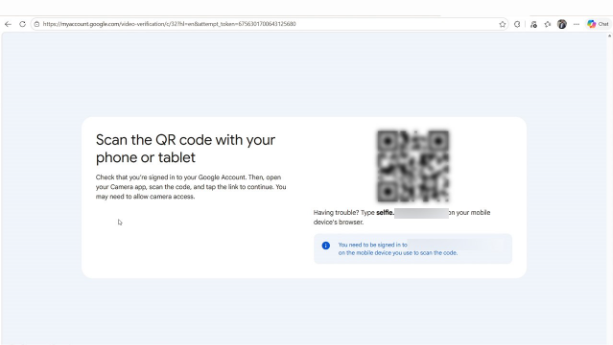
Once you click Try Now, a new window opens with a QR code, and this is where the actual verification happens.
- Scan the QR code using your mobile phone.
- Sign in with the same Google account you are using on your computer.
- Complete a quick face verification.
- Record and verify your voice when prompted.
Google then uses this to build an avatar that closely resembles you, along with a voice that matches your own fairly closely. The whole process usually takes just a few moments to finish.
Step 3: Avatar Ready to Use
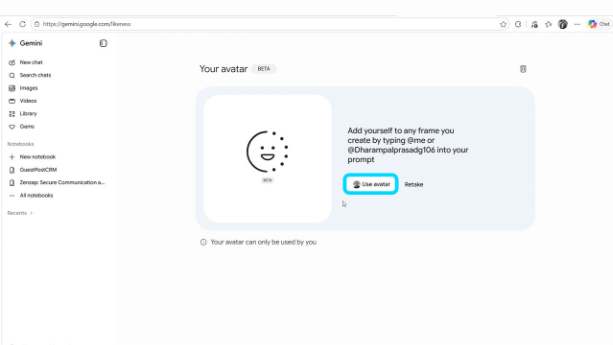
Once the setup finishes, the QR code page on your computer updates on its own to confirm everything went through.
- A message appears letting you know the setup is complete.
- You can safely close the QR code window at this point.
- Returning to Gemini shows your newly created avatar sitting there, ready to use.
From here, you can click Use Avatar if you are happy with how it turned out or click Retake if you would rather go through the setup again.
How to Get Better Results from Your AI Avatar
Creating the avatar is only the first step. The quality of the content you generate will also depend on how clearly you describe the scene, movement, setting, and role you want the avatar to perform.
Instead of using a short prompt such as “make a video of my avatar,” provide more context about what should happen. Mention the environment, the avatar’s actions, the type of camera shot, the mood, and how the character should interact with the scene. Clear instructions can make it easier to achieve a more controlled result.
It is also helpful to maintain a consistent style across related projects. If you are creating a series of videos, try to keep details such as the character’s role, tone, visual style, and overall presentation consistent. This can make separate AI-generated clips feel more connected when they are edited together.
As AI tools continue to develop, this type of workflow reflects the broader direction of Evolving AI, where creative systems are becoming more capable of handling personalised and repeatable content creation.
Step 4: Use Avatar Again in Gemini
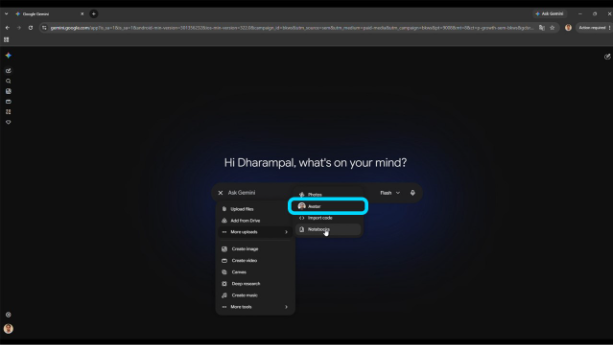
Once your avatar exists, reusing it later is refreshingly simple.
- Click the Plus icon on the left-hand side.
- Select More Upload.
- Your saved avatar will appear there, ready to be selected again.
This means you only need to go through the face and voice verification one time, and the avatar stays saved and available whenever you need it.
Step 5: Use Avatar in Google Flow
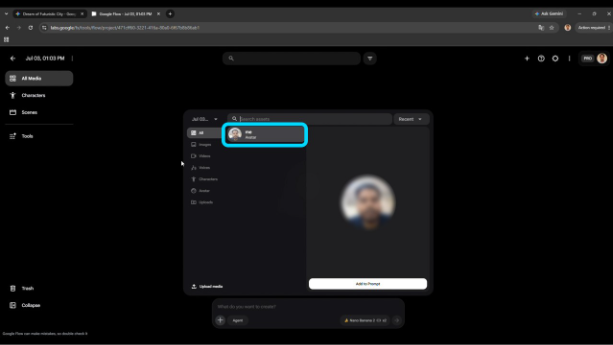
The same avatar you created in Gemini carries over directly into Google Flow, so there is no need to build a separate one from scratch.
- Open a new browser tab and search for Google Flow.
- Click Create with Google Flow and sign in using the same Google account.
- Create a new project.
- Click the Plus icon at the bottom of the prompt editor.
Your previously created avatar shows up right away, ready to be added to your prompt.
Step 6: Generate AI Images and Videos
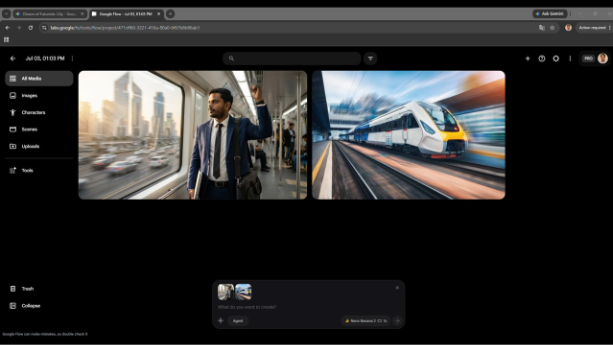
With the avatar added to your prompt, you can start generating content that keeps the same face and voice consistent throughout.
- Select the avatar and add it to your prompt.
- Generate AI images and videos featuring the same person every time.
- Keep the same voice running across every clip you create.
This consistency comes in handy for cinematic videos, marketing content, educational tutorials, social media reels, or ongoing AI storytelling, where having a recognisable, repeating character genuinely makes a difference.
For creators who want more control over output beyond avatars, an AI video generator can round out the workflow.
How to Use Your Avatar in a Complete AI Content Workflow
A consistent avatar becomes even more useful when it is treated as part of a larger content workflow instead of being used for a single generated clip. For example, you can first develop a video idea, plan the scenes, create the visuals, and then use the avatar as the recurring character throughout the project.
Before generating the final video, it can be helpful to plan the sequence of events and decide how the avatar should appear in each scene. Think about the opening, key actions, dialogue, transitions, and ending before generating multiple clips. This can reduce unnecessary generations and make the final content easier to assemble.
Creators working on films, marketing campaigns, tutorials, or social media series can also use visual planning to decide how the avatar fits into each scene. Combining consistent characters with tools such as AI Storyboards can make it easier to organise ideas before moving into the video generation stage.
This approach gives you more control over the final result and helps turn a personalised avatar into a repeatable production asset rather than just a one-time experiment.
Conclusion
Google Gemini Avatar Beta gives you a straightforward way to build a personalised AI avatar using your own face and voice and then use that same avatar across both Google Gemini and Google Flow. From the initial verification steps all the way to generating consistent AI images and videos, the workflow is built to save you from recreating a character every single time you start a new project. As avatars increasingly work alongside AI agents handling the surrounding tasks, this kind of consistency is likely to become a bigger part of how creators keep their AI content looking and sounding the same every time.
Frequently Asked Questions :
Q. Do I need a Gemini Pro subscription to create an avatar?
Only if you’re creating it through Google Gemini directly. Creating an avatar through Google Flow doesn’t require a subscription; it comes with a free trial of around 50 credits instead.
Q. Can I use the same avatar in both Gemini and Google Flow?
Yes. Once your avatar is created in Gemini, it carries over automatically to Google Flow; there’s no need to go through setup a second time.
Q. Do I need to verify my face and voice every time I use the avatar?
No, verification only happens once. After that, your avatar is saved and ready to be selected again from the Plus icon → More Upload menu.
Q. What happens if I’m not happy with how my avatar turned out?
You can click Retake right after setup finishes to go through the face and voice verification again until you’re satisfied with the result.
Q. What can I use the avatar for once it’s created?
It works well for cinematic videos, marketing content, educational tutorials, social media reels, and ongoing AI storytelling, anywhere a consistent, recognizable character matters across multiple pieces of content.