
Introduction
Digital artists need to spend a lot of time juggling between different apps just to include AI-driven elements to their work: paint using one tool, create in a browser tab, then import the result back and pray that the lighting matches. That gap in workflow is precisely what a plugin known as Krita AI was created to close. Since the tool directly brings generative features into the painting software you use daily, you do not have to export a canvas somewhere else. For any user experimenting with concept art, AI-driven illustration, or photo editing, Krita AI has slowly become one of the most widely discussed tools in the AI-powered art, and comprehending what it does actually is the key step to using it well.
What Is Krita AI?
Krita AI, more formally referred to as Krita AI Diffusion, is an open-source and free plugin built by a contributor called Acly that incorporates Stable Diffusion into Krita, the open-source digital painting app. It enables artists to create, outpaint, inpaint, and fine-tune artwork through text prompts and own selection tools of Krita, all without ever leaving the canvas they are working on already.
The plugin is hosted on GitHub and distributed under the GPL-3.0, where it has attracted a wide community of testers, contributors, and daily users. It supports support to both local processing on the own hardware and cloud-based generation for artists who prefer not to run models locally. In simple terms, this plugin converts Krita into a hybrid workspace where conventional brushwork and AI generation take place side by side, on the same layer stack simultaneously.
What Are the Main Characteristics of Krita AI?
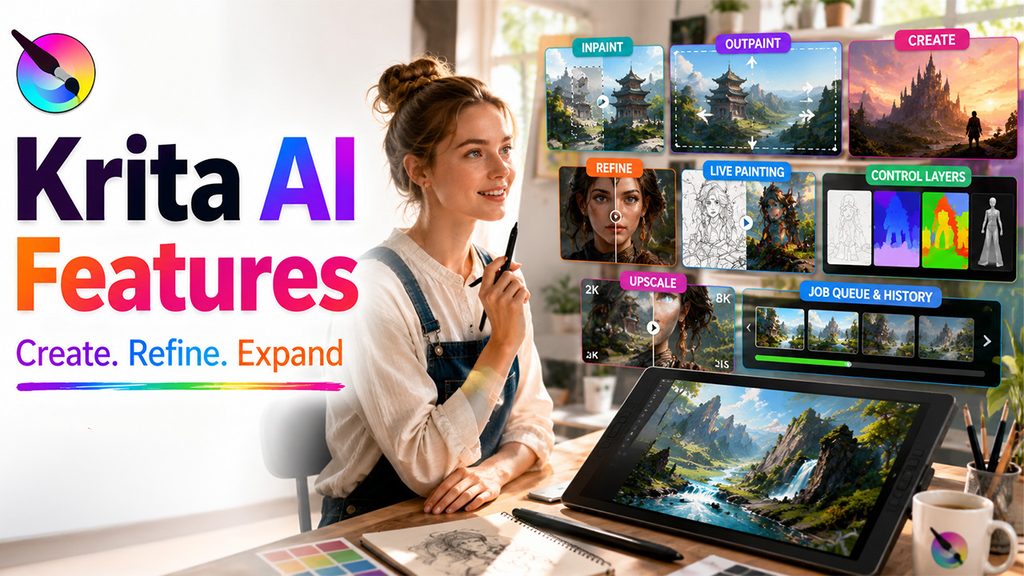
Krita AI is developed around precision instead of one-click generation, which is one of the main reasons why concept artists and illustrators often prefer it over individual browser-driven generators. The main features are listed below:
- Inpaint – Choose an area of an image and remove or replace content with the help of a text prompt.
- Outpaint – Widen the canvas and fill new space automatically, so it naturally mixes with the existing artwork.
- Create – Generate new images from the beginning through text prompts or reference images, with support for models like SDXL or Diffusion 1.5, and latest diffusion architectures.
- Refine – Adjust the strength slider to change the existing content instead of outright replacing it, which is helpful for giving touch-ups to rough sketches.
- Live Painting – Get AI interpretation of the canvas in real-time as you sketch, so feedback almost immediately appears.
- Control layers – Guide composition with line art, scribbles, depth maps, segmentation maps, or pose references extracted from 3D scenes or available images.
- Upscaling – Increase the size of finished images to 4K, 8K, or above without overwhelming the system memory.
- Job Queue and History – Keep different generations in queue while continuing with your painting, then browse previous results and prompts whenever required.
If you also work with other AI-driven creative tools, it is worthwhile to compare how a plugin-based workflow like this is different from browser-based solutions such as AI image generation services that different creators depend on for fast concept work outside of a standalone painting software.
Process to Install and Set Up Krita AI
Running the plugin does not need experience in coding, though a few prerequisites are important for a seamless set up. Before you set up Krita AI, you need to confirm that the system aligns with fundamentals:
- Krita version 5.2.0 or latest.
- Linux, Windows, or macOS 14 or later for Apple Silicon devices.
- At least 6 GB of VRAM is suggested for local creation; AMD GPUs leverage ROCs, NVIDIA GPUs utilize CUDA, Intel GPUs leverage XPU, and CPU-only setups work but are considerably slower.
Once you confirm that your system is aligned, you can execute installation by following a short sequence of steps:
- Install as well as update Krita to version 5.2.0 or latest.
- Download the package of the plugin from its official release page of GitHub.
- Then, go to Krita and then Tools>Scripts> Import Python Plugin from File. After that, choose the downloaded archive.
- Restart the Krita so the plugin correctly loads.
- Proceed to enable the docker: Settings>Dockers> AI Image Generation.
- Start the docker and select “Configure” to automatically install the local ComfyUI, or tether to an existing remote or local server instead.
The plugin depends on ComfyUI as its processing engine. Advanced users who run ComfyUI already can link the tool to an existing installation instead of enabling it to handle a separate one, which is valuable for teams that maintain shared generation servers already or studio-wide setups.
What Are the Different Ways Artists Utilize Krita AI?
Apart from the feature list, it helps to see how people use this plugin on a daily basis in daily work. Main applications are as follows:
- Removing or cleaning up unwanted objects from photographs through inpaint, without transitioning to a dedicated photo editor.
- Widening scenery or background on a canvas that was too small originally or cropped too closely.
- Sketching a rough composition or pose and enabling the tool fine-tuning or improving into a more completed piece.
- Creating fast concept variations for environment art before going for the final version.
- Leveraging control layers to make sure that the pose of the character remains consistent across different created illustrations or panels.
Why Are Creators Opting for Krita AI?
The appeal traces back to workflow integration and control instead of novelty. Instead of different browser-driven generators that give you a completed image with little allowance for adjustment, this plugin makes sure that each generation remains editable within the similar environment artists use already for retouching and painting. A few reasons it has become popular are as follows:
- It makes sure that the whole process, ranging from sketch to refinement to final export, remains inside one app.
- Local processing implies that prompts and artwork can remain in the own machine of the artist when privacy is priority.
- Regional prompting allows distinct aspects of a single image to follow varying text descriptions at once.
- The open-source model implies that the development relies on consistent contributions instead of a single closed blueprint.
Artists developing wider AI-driven content pipelines sometimes combine this kind of painting-oriented plugin with other generation tools like Leonardo AI for animation or video work. Compare different generators before committing to a platform that aligns with their budget, style, and hardware.
Conclusion
Krita AI stands apart since it considers generative AI as an extension of conventional digital painting instead of a replacement for it. By combining outpainting, inpainting, refinement, and live generation inside the existing toolset of Krita, it provides artists with a level of greater control that different individual AI generators simply do not offer. Irrespective of whether the objective is a quicker concept iteration, smooth editing of photos, or experimenting with new compositions, Krita AI provides an artist-first or practical way to integrate into a set-up creative workflow.
Frequently Asked Questions :
Q1. Can you use Krita AI for free?
Yes, Krita AI Diffusion refers to an open-source and free plugin that incorporates AI image generation features into Krita directly.
Q2. Can Krita AI create images using text prompts?
Yes, you can generate images through reference images, text prompts, and supported diffusion models within the Krita workspace directly.
Q3. What is the main difference between outpainting and inpainting in Krita AI?
Inpainting replaces or edits the chosen areas of an image, while the outpainting extends the canvas and creates the new context apart from the original boundaries.
Q4. Does Krita AI operate with Stable Diffusion?
Yes, Krita AI Diffusion incorporates Stable Diffusion-driven models and utilizes ComfyUI as its processing backend for AI image creating and editing.
Q5. Do I require an effective GPU to leverage Krita AI?
An effective is suggested for quicker local image generation, although available hardware needs and performance as per the chosen setup and models.