The blog step-by-step process of connecting Claude AI with Blender, using Blender AI, along with the benefits of connecting, key applications, and prerequisites before connecting the two platforms.
Generating 3D models in Blender traditionally requires key technical expertise, along with countless manual adjustments and a proper understanding of the software. However, this can be achieved simply by connecting AI to the rendering platform. By connecting Claude AI with Blender MCP, users can easily control Blender using simple natural language prompts, instead of manually modelling, scripting, or navigating through complex menus.
What is Blender MCP?
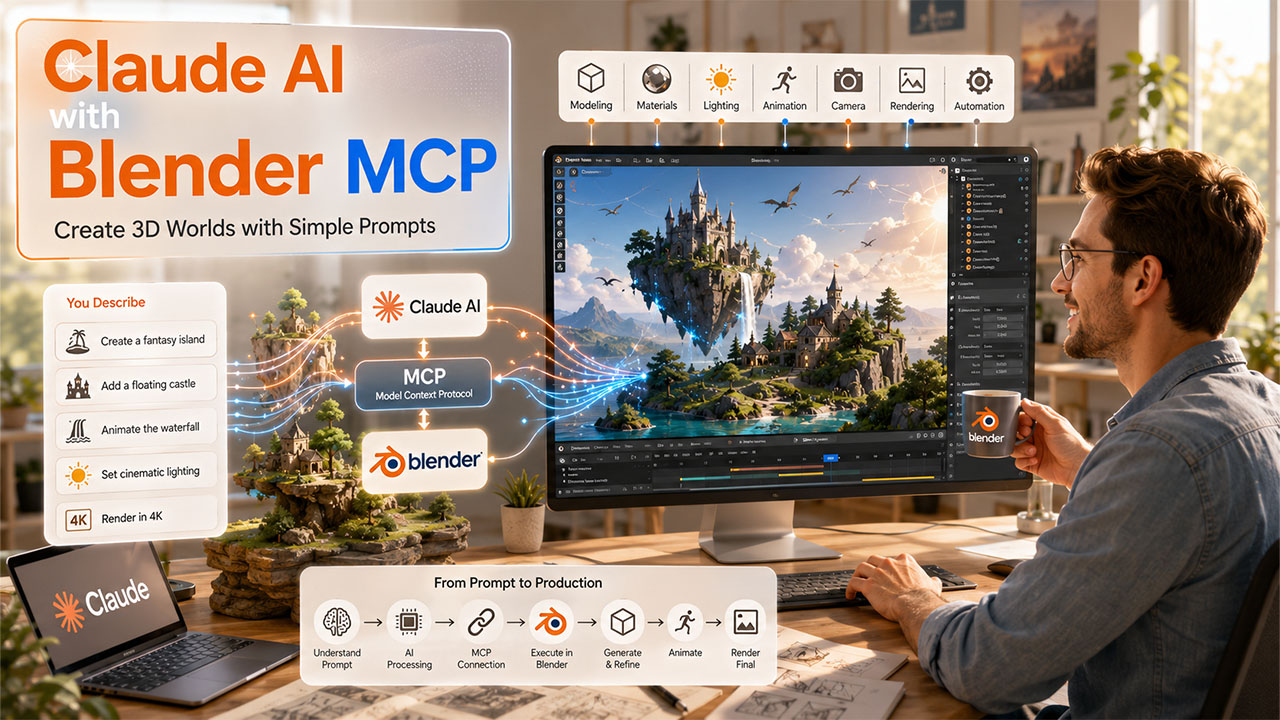
Blender MCP (Model Context Protocol) is an AI integration that allows large language models, such as Claude AI, to efficiently and seamlessly communicate directly with Blender, using natural language. With the MCP, the user can simply describe what they want to achieve, such as creating a 3D model or editing an object, and the AI performs the tasks automatically, instead of manually performing actions inside Blender.
The Blender MCP acts as a bridge between the AI assistant and Blender by exposing the tools and functions of Blender through the Model Context Protocol. Once connected, the AI assistant, such as Claude AI, can seamlessly interpret the text prompts and translate them into Blender operations, eliminating the need to navigate through complex menus or write Python scripts for many common tasks.
Benefits of Using Blender MCP
Using Blender MCP for connecting Claude AI with Blender offers key advantages over to the traditional workflow, which includes:
- Reduces repetitive manual work.
- Speeds up prototyping.
- Makes Blender easier for beginners.
- Eliminates the need for scripting in many scenarios.
Benefits of Using Claude AI with Blender

Connecting Claude AI with Blender offers users key benefits, such as:
- Faster 3D Modeling: Instead of creating every object manually, the user can simply describe what they want, and Claude AI will generate it.
- Natural Language Commands: The integration offers no scripting knowledge, as Claude can understand everyday language.
- Workflow Automation: Claude can automate repetitive tasks, such as creating objects, scene organization, lighting, and rendering.
- Improved Productivity: With the connection, artists can spend less time navigating through menus and more time refining creative ideas.
- Beginner Friendly: The connection ensures that users with limited Blender experience can also generate impressive scenes, using AI-assisted prompts.
If you’re exploring AI-powered content creation beyond 3D modeling, you may also find our Google Gemini Avatar Beta Tutorial helpful. It shows how to create a consistent AI avatar that can be used across Google Gemini and Google Flow, making it a great companion to AI-assisted Blender workflows.
Key Considerations Before Connecting Claude AI with Blender
Before connecting Claude AI with Blender, users need to make sure that the following have been installed:
- Claude Desktop
- Blender version 5.1 or later
- Blender MCP Extension
- A stable internet connection
- A Claude account
Steps to Connect Claude AI with Blender MCP
The complete steps to connect Blender with Claude AI are as follows:
Step 1: Download and Install Claude Desktop
The first step in connecting Claude AI with Blender is to download Claude Desktop. To download, visit Anthropic’s official website and download the latest version compatible with your device.
Step 2: Install Blender Connector in Claude
Open Claude Desktop and click on the Customize or Plus (+) icon. Select Add Connector and choose Browser Connector.
From the search bar, find Blender and click on Install.
Step 3: Install Blender
Download the latest version of Blender from the official website of Blender.
Step 4: Install the Blender MCP Extension
Search for Blender MCP or download the extension from the link offered by the developers.
After downloading the ZIP file, do not extract it. Instead, open the Blender, drag and drop the ZIP file directly into the Blender window. Click on Enable Add-on > Ok.
Step 5: Verify the Installation
pen Edit > Preferences > Add-ons.
Search for MCP.
If the Blender MCP add-on appears, enable the checkbox.
If it doesn’t appear, repeat the drag-and-drop installation process.
Step 6: Connect Claude with Blender
Open Claude Desktop and click on Plus (+) > Connectors.
Verify that the Blender connector is turned on.
Step 7: Test First AI Prompt
In Claude, type a simple prompt, such as “Create a low-poly tree in Blender.”
Key Applications of Connecting Claude AI with Blender MCP.

Connecting Claude AI with Blender offers key applications to the users, some of which are as follows:
Refining AI-Generated Models :
After generating a basic 3D model in Blender, the user can continuously improve it by giving Claude detailed instructions. Claude interprets the prompts and applies the following changes automatically.
Adding Animations with AI :
Connecting the two platforms simplifies the animation process. Instead of creating keyframes and configuring animation manually, the user can simply describe the motion they want in plain language.
Once your animations are ready, planning the overall sequence becomes equally important. If you’re creating animated films, marketing videos, or cinematic projects, our guide on Google Flow Storyboard Studio explains how to use AI to automatically generate storyboards, scenes, camera angles, and visual assets before bringing them into your Blender workflow.
Rendering Scene Using Prompts :
Blender MCP also automates the rendering process. Rather than navigating through settings, the user can select output options and simply instruct Claude to render the scene.
Conclusion
Connecting Claude AI with Blender, using Blender MCP, offers key benefits to users, along with making 3D creations more accessible. With just a few setup processes, users can control Blender using natural language, create models, refine scenes, and add animations without relying on complex menus or scripts. From a beginner exploring 3D design or a professional looking to streamline production, connecting Claude AI with Blender helps in making the 3D content creation faster, smarter, and more intuitive.
Frequently Asked Questions :
How does Blender MCP work?
The Blender MCP acts as a bridge between Claude AI and Blender. The MCP translates text prompts into Blender operations, allowing the AI to perform tasks automatically.
Do I need coding knowledge to use Blender MCP?
No, the user does not require any technical or coding knowledge to use Blender MCP. It is designed to understand plain English commands.
How do I connect Claude AI with Blender?
To connect Claude AI with Blender, you need to install Claude Desktop, add the Blender Connector, install the Blender MCP extension in Blender, enable the add-ons, and activate the connector.
Can Blender MCP generate animation?
Yes, the Blender MCP can generate animation using natural language, and Claude AI can create keyframes, animate objects, and modify motion sequences inside Blender.